.png)
Download Google Calendar Sync for Windows: All your calendars in one place
In today’s fast-paced business world, keeping track of meetings, appointments, and deadlines is essential for productivity. Google Calendar Sync is a tool developed by Google to help individuals and businesses seamlessly manage their calendars across multiple devices. Whether you are a student, individual, or company, Google Calendar Sync ensures that your schedule always stays organized and current. You can download Google Calendar Sync for Windows and start tracking your personal and professional commitments efficiently.
Top Recommended Alternative

What is Google Calendar Sync for Windows?
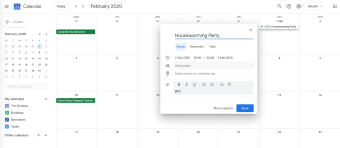
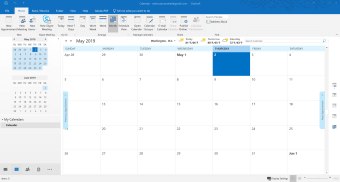
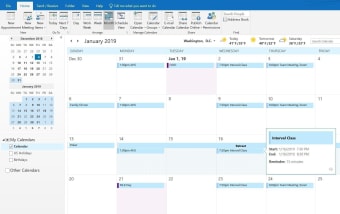
Google Calendar Sync for Windows is a synchronization tool that syncs your Google Calendar with your Outlook calendar. It was developed to help individuals manage their calendars across different platforms, automatically allowing users to add events from one calendar to another.
What can you do with Google Calendar Sync for Windows?
In a perfect world, all our software would be part of the same unified ecosystem. However, this isn’t an ideal world, and some of us might have to use Google Calendar for some tasks and other calendar applications and tools for others. You might even have two distinct schedules, and that’s where Google Calendar Sync comes in. Here’s what you can do with this tool:
- Sync events between calendars: Using Google Calendar Sync, you can utilize one-way or two-way synchronizations, ensuring events created in one calendar appear in the other.
- Access calendars on multiple devices: You will need a Google account to get Google Calendar and Google Calendar Sync, meaning you can access your calendar on any device, anytime, as long as you have your correct login credentials.
- Reduce scheduling conflicts: Google Calendar Sync ensures that all your events, appointments, and meetings are synchronized, avoiding cases of double booking and ensuring that you never miss an important event.
- Automate schedule updates: Google Calendar Sync ensures that any changes made on one calendar are automatically reflected in the other without manual intervention.
Key features of Google Calendar Sync for Windows
Merging calendars is akin to streamlining the very fibers of your daily plans and to-dos. It creates a centralized hub for all your events, be it personal or professional, allowing you to stay on top of your daily or weekly schedule without having to juggle multiple platforms. Here are some of the features that help Google Calendar Sync achieve this:
- One-way and two-way synchronization: These two synchronization methods offer two different results. Google Calendar events would appear in the other calendar in one-way synchronization or vice versa. In two-way synchronization, both calendars would automatically update each other, with all events appearing in both calendars.
- Automatic updates: This feature allows for any changes—inclusions or deletions—made in one calendar to appear in the second calendar without manual intervention. This feature ensures that all your calendars are constantly updated.
- Sync frequency: This feature allows you to set the synchronization frequency, letting you choose the best frequency for updating your calendar, from every 10 minutes to once a day.
- Event details syncing: Google Calendar Sync works well, syncing not only event titles, dates, and times but also details about the event, like reminders, participants, locations, or any extra details included when the event was created.
- Multiple calendar support: Google Calendar Sync allows you to sync multiple calendars, giving you access to all your events in one place.
Why download Google Calendar Sync for Windows
There are many benefits of using Google Calendar Sync, and these include:
- Centralized scheduling: Managing two daily planner apps is difficult since it requires constantly switching between them to organize your schedule. Using Google Calendar Sync to merge both calendars allows you to view all your events from both calendars from one app without the back and forth.
- Zero conflicts: Google Calendar is a collaboration tool, like Drive, Slides, and Meet. Anyone from your team with access can view and edit events in your calendar, causing potential conflict. However, once you merge your two calendars, your team members get a view of all your events and prior commitments, eliminating the chances of clashing.
- Enhanced productivity: Once you sync your calendars with Google Calendar Sync, you’ll see all your commitments from a central location, allowing for better planning and execution and, in turn, boosting your productivity.
- Convenience: The Google Calendar interface differs from Outlook and other calendar apps. Since they differ, managing both apps takes much time and effort. However, when you sync them, you can manage and update both calendars from just one app, making it much more manageable.
- Simplified management: Using Google Calendar Sync ensures that changes made in one calendar are automatically reflected in the other, eliminating the need to manually update each calendar.
- Cross-platform accessibility: Once you sync all your calendars with Google Calendar Sync, you can view and manage your calendar across multiple devices, from PCs to phones and tablets.
Best practices for syncing Google Calendar and Outlook Calendar
Syncing Google and Outlook calendars is not hard, and here are some tips and best practices that can prove handy when you sync your calendars:
- Ensure uniformity in time zones
- Test the sync
- Frequently view and update your settings
- Keep both apps updated
- Create backups for your calendars beforehand
Google Calendar Sync is a valuable tool that bridges the gap between Google Calendar and other calendar apps like Outlook. By leveraging synchronization tools, you can seamlessly access your schedule across different platforms, boost your productivity, and better manage your time. The tool is available for Windows 10 PCs or later versions, and you need a stable internet connection and a browser like Chrome to run it.
















.png)